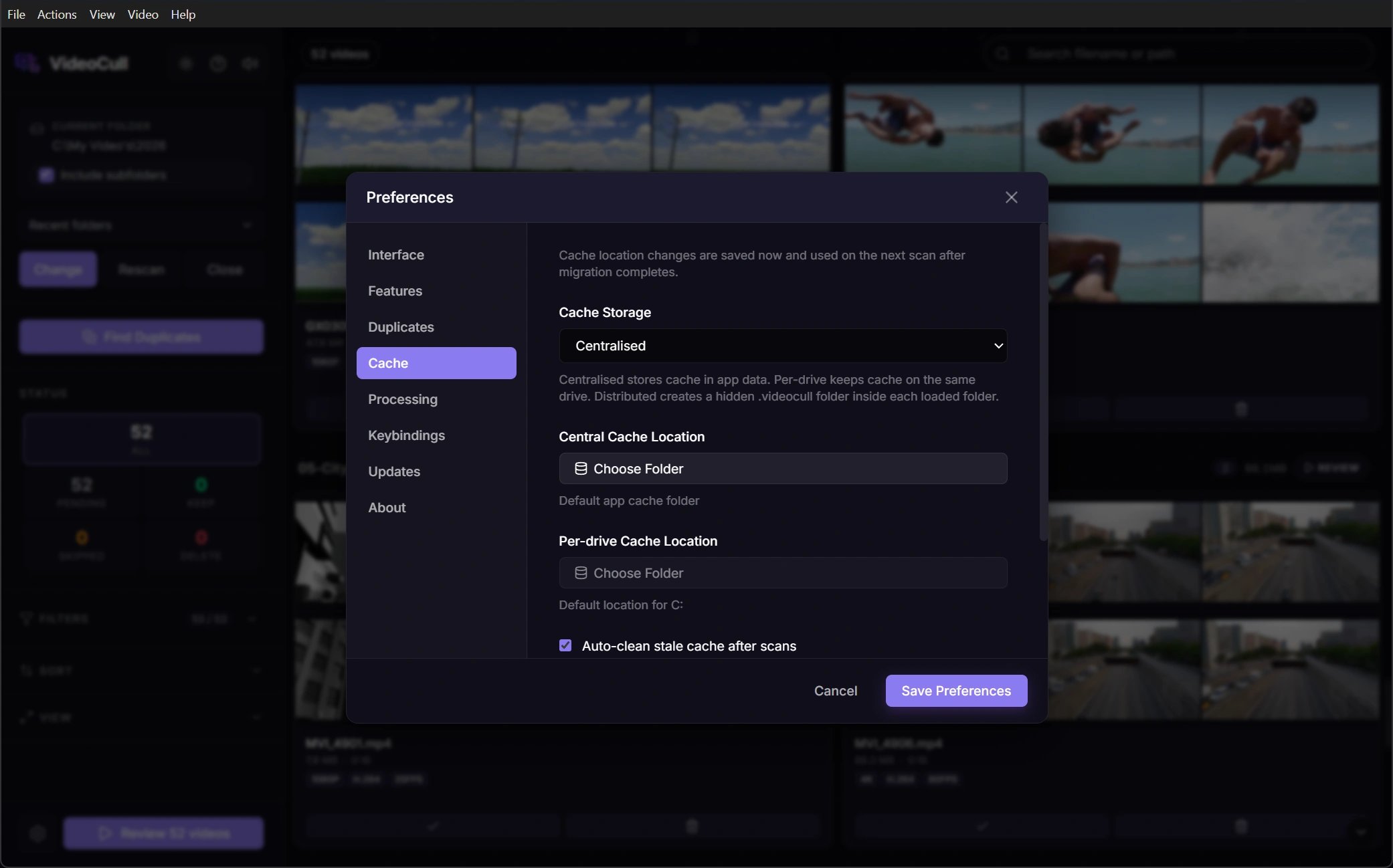
VideoCull stores SQLite databases and generated thumbnails locally. The cache preserves decisions, ratings, favorites, bookmarks, metadata, duplicate fingerprints, and thumbnail paths across rescans and restarts. VideoCull Cache settings showing centralised, per-drive, and distributed storage controls

Choose a cache mode

Centralised is the safest default. Distributed mode is deliberately marked as a power-user option because it writes cache folders into the media tree.

Change cache location

Saving a changed cache mode or root starts the cache migration flow. You can migrate existing data, start fresh, or cancel. When using a custom central folder, choose Use Default to return to VideoCull’s standard cache location, then save Preferences.
  • Migrate existing cache keeps current progress when the source cache is available.
  • Start fresh leaves the new location empty; the next scan rebuilds metadata and thumbnails.
  • Cancel leaves both settings and cache layout unchanged.
Do not disconnect a source or destination drive during migration. If a partial migration is reported, read the error before rescanning or deleting the old cache manually. The Microsoft Store and direct-download editions use the same default cache at %APPDATA%\VideoCull\video-cache. Resetting or uninstalling the Store package does not remove this shared cache. Custom central, per-drive, and distributed caches also remain in place when VideoCull is uninstalled.

Know when settings apply

Changing a generation setting does not silently rebuild existing thumbnails. Rescan or regenerate thumbnails when you want current cached output replaced.

Tune thumbnail generation

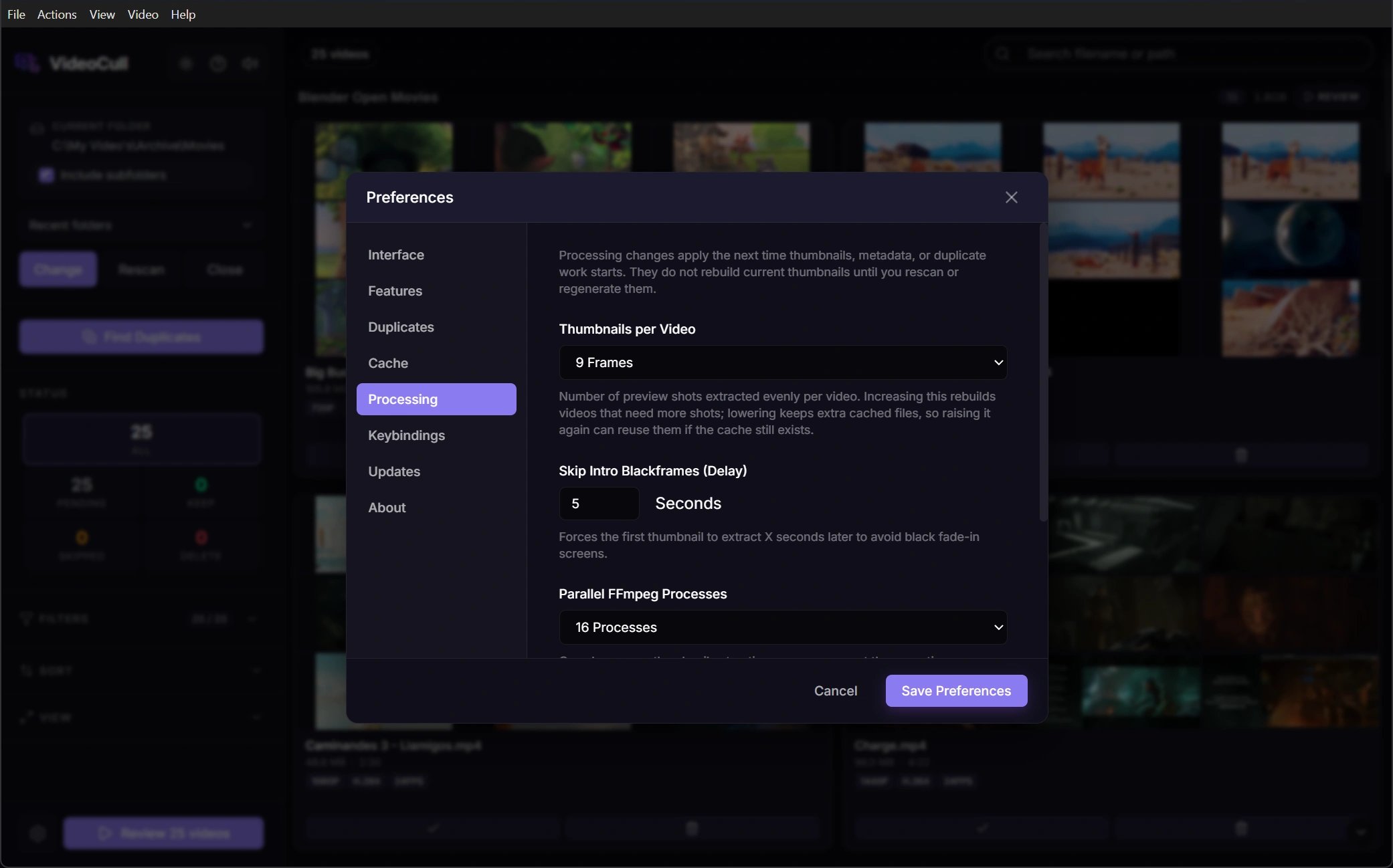
More frames provide more visual context but cost extra CPU time, disk reads, and cache space. Six frames is a useful general default; use fewer for speed or more when clips change significantly over time. Intro skip delay moves the first sample away from fades and blank lead-ins. Increase it only when early frames are consistently useless.

Control processing cost

VideoCull Processing settings showing thumbnail count, intro delay, and parallel FFmpeg controls
  • Leave Parallel FFmpeg processes on Auto unless the machine becomes unresponsive or storage is saturated.
  • Keep Limit each FFmpeg process to 1 CPU thread enabled for predictable parallel work.
  • Treat Hardware acceleration as experimental. Disable it first when GPU decoding crashes or behaves poorly with older formats.
  • Lower concurrency for slow external, network, or cloud-mounted drives.
  • Leave Keep the PC awake while processing on for long runs. Windows then does not go to sleep on its own until processing finishes or is paused.

Sleep or shut down when processing finishes

For long runs, such as the first scan of a large library or fingerprinting it for duplicates, choose Actions > When Processing Finishes in the menu bar, or select the processing status at the right of the title bar, while processing runs:
  • Do Nothing is the default.
  • Sleep puts the PC to sleep.
  • Shut Down closes VideoCull cleanly and shuts the PC down. Other apps with unsaved work are not forced to close, so Windows waits for them.
The choice covers everything that is processing at that moment, including stages that start right after, such as thumbnails after video info. It applies to this run only: once it has run, or when you close the session or open another folder, it resets to Do Nothing, so a later rescan never triggers it. While Sleep or Shut Down is chosen, the PC stays awake until it runs, even when Keep the PC awake while processing is off. When processing has finished, a 60-second countdown appears; select Cancel to stay awake. The menu is only available while processing runs. You can browse and review while thumbnails continue in the background. Metadata-dependent actions, including duplicate detection, may wait until the required metadata is ready.

Regenerate thumbnails or clear cache

Use grid batch Thumbs when generated images are stale, incomplete, or based on settings you no longer want. This clears and regenerates thumbnails only for the selected videos while preserving statuses, ratings, favorites, bookmarks, and other cached metadata. Use File > Clear Cache and Reload only when the current cache itself should be discarded. After confirmation, it clears the cache for all loaded folders, reloads the session, and loses manual review decisions and other progress stored only in that cache. Source videos are not deleted. Choosing Start fresh during a cache-location change has the same important distinction: it removes cached convenience and progress from the new active cache, not source media. Migrate or preserve the old cache when its decisions and bookmarks still matter.
Thumbnail regeneration is targeted maintenance. Full cache clearing is a progress reset. Do not use them interchangeably.
Change one processing setting at a time and test it on a representative folder before rebuilding a large library.
Last modified on October 9, 2026