
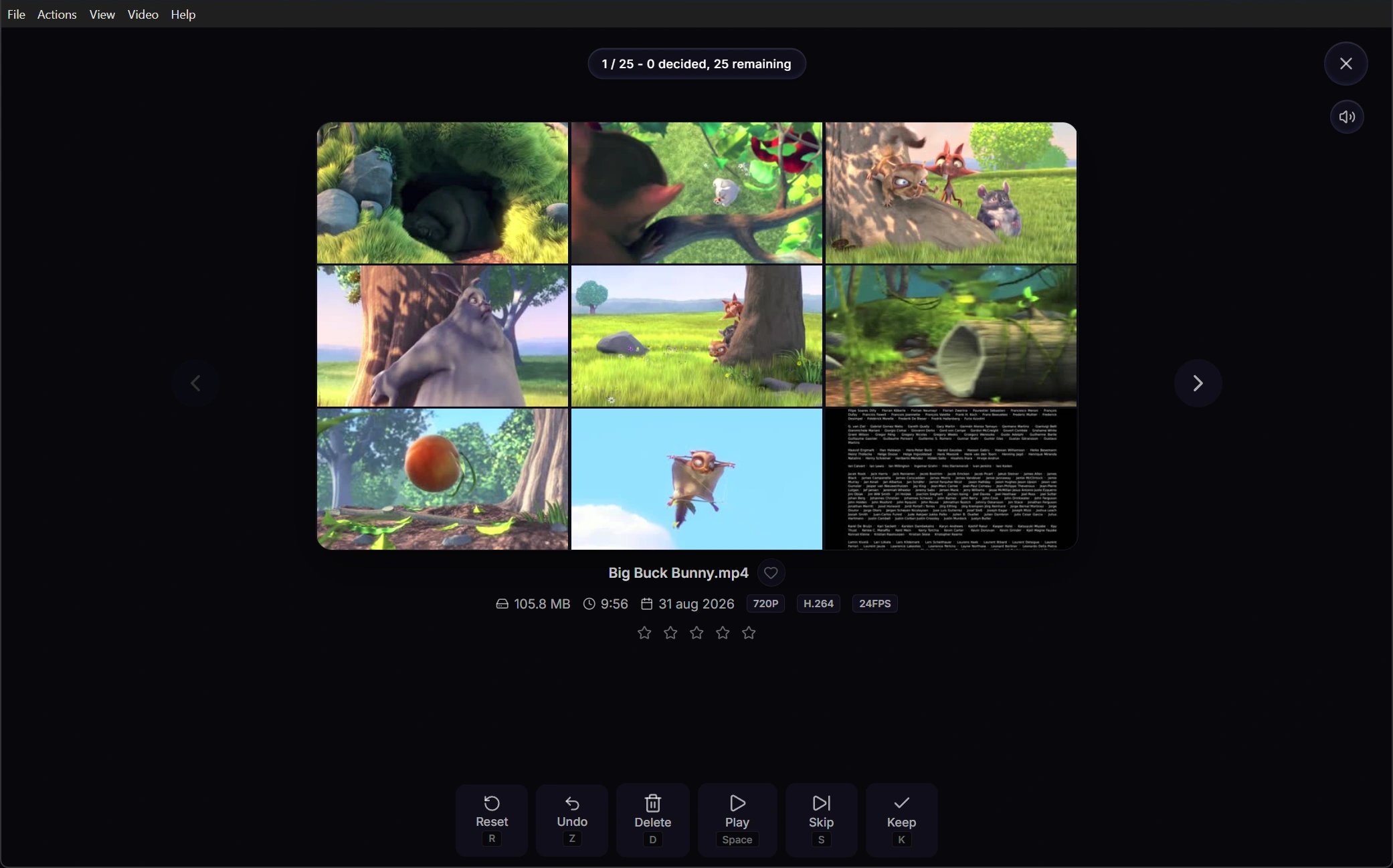
Choose the review scope
Review freezes its scope when it opens, so later status changes do not make videos disappear from the current queue.
This is what direct opening means: clicking a specific card opens that video instead of restarting Review at the beginning, while previous and next navigation still use the surrounding filtered pool.
Make and reverse decisions
Keep, Delete, Skip, and Reset only change cached review status. Ratings, favorites, and bookmarks are independent, so Reset does not clear them. No file is moved by a Review decision.
Navigate decided and pending videos
Previous and next navigation moves through every video in the frozen scope, including videos already marked Keep, Delete, or Skipped. This lets you inspect or revise an earlier decision without changing the queue. The progress display separates total position from decision progress: it shows the current item, decided count, remaining Pending count, and a progress bar. PressTab to jump to the next Pending video and wrap through the scope. If none remain, VideoCull reports that every other item already has a decision.
When you advance beyond the last item, Review shows a summary of Keep, Delete, Skipped, and Pending counts plus the total size marked Delete. Return to the grid to inspect or commit the delete batch.
Use keyboard controls
Kkeeps the current video.Dmarks it Delete.Sskips it.Rresets it to Pending.Zundoes the last decision.SpaceorEnterstarts or pauses built-in playback.Ctrl+Enteropens the file in the default external player.Escstops playback first; press it again from preview state to leave Review.
K marks Keep instead of pausing playback.
The in-app Keyboard shortcuts page renders your current bindings. Use it instead of memorizing the defaults after remapping keys.
Play and scrub
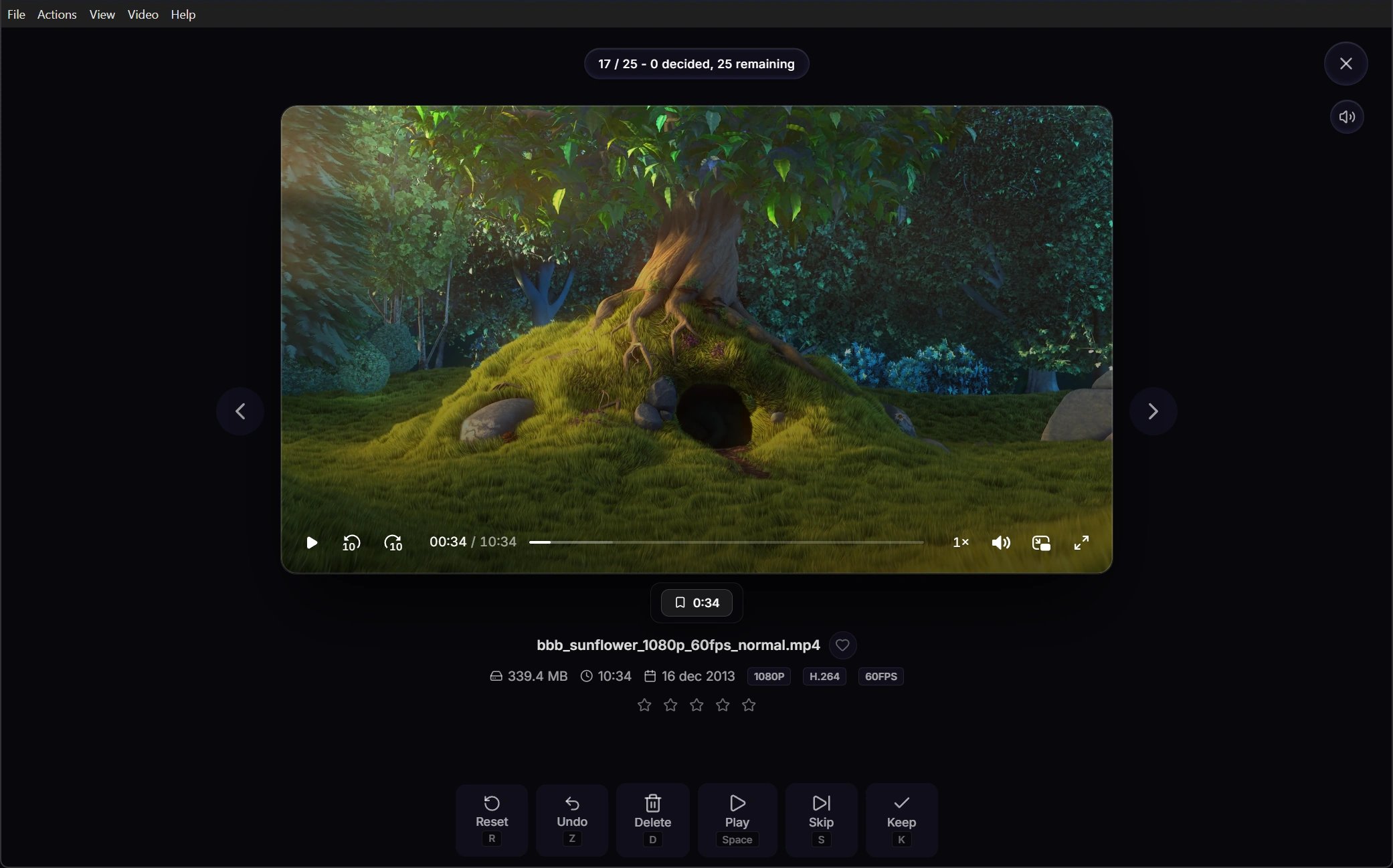
Left and Right navigate to the previous or next item. While it is playing, the same keys seek backward or forward by five seconds.
Use [ and ] to move through playback speeds from 0.5x to 2x. The selected speed carries into the next playback session. Use the player timeline for direct scrubbing and fullscreen control.
Playback controls auto-hide by default. Enable Keep playback controls visible in Review under Settings > Interface to keep the timeline and player controls on screen.
Global mute applies to in-app playback and can be toggled with M. External playback uses the external player’s settings.
Add metadata and bookmarks
Ratings and favorites can be changed directly in Review when those features are enabled. Both are saved independently from review status and can later be used as grid filters or report metadata. While playing, pressB or use the bookmark button to save the current timestamp. Bookmarks also appear as marks on the playback timeline. Bookmark chips seek back to saved positions; remove a chip when it is no longer useful. The bookmark count remains visible in preview state.
Right-click the Review content to open the current video externally, reveal it in Explorer, or copy its path.
Handle unsupported playback
Videos that fail the compatibility check open externally instead of forcing the embedded player. If Chromium can decode the video but not its audio stream, Review shows an audio-codec warning with an external-player option.Thumbnailing, metadata, ratings, statuses, and deletion marking still work for files that cannot play in the built-in player.