
Introduction
What VideoCull does, how the review flow works, and what makes it faster than opening files one by one.
Installation
Choose Microsoft Store or the direct installer, then launch the app.
Quickstart
Open your first folder, generate thumbnails, and make your first keep or delete decisions.
FAQ
Answers about formats, cache locations, offline use, updates, and recovery.
Highlights
- Thumbnail strips generated with bundled FFmpeg and FFprobe.
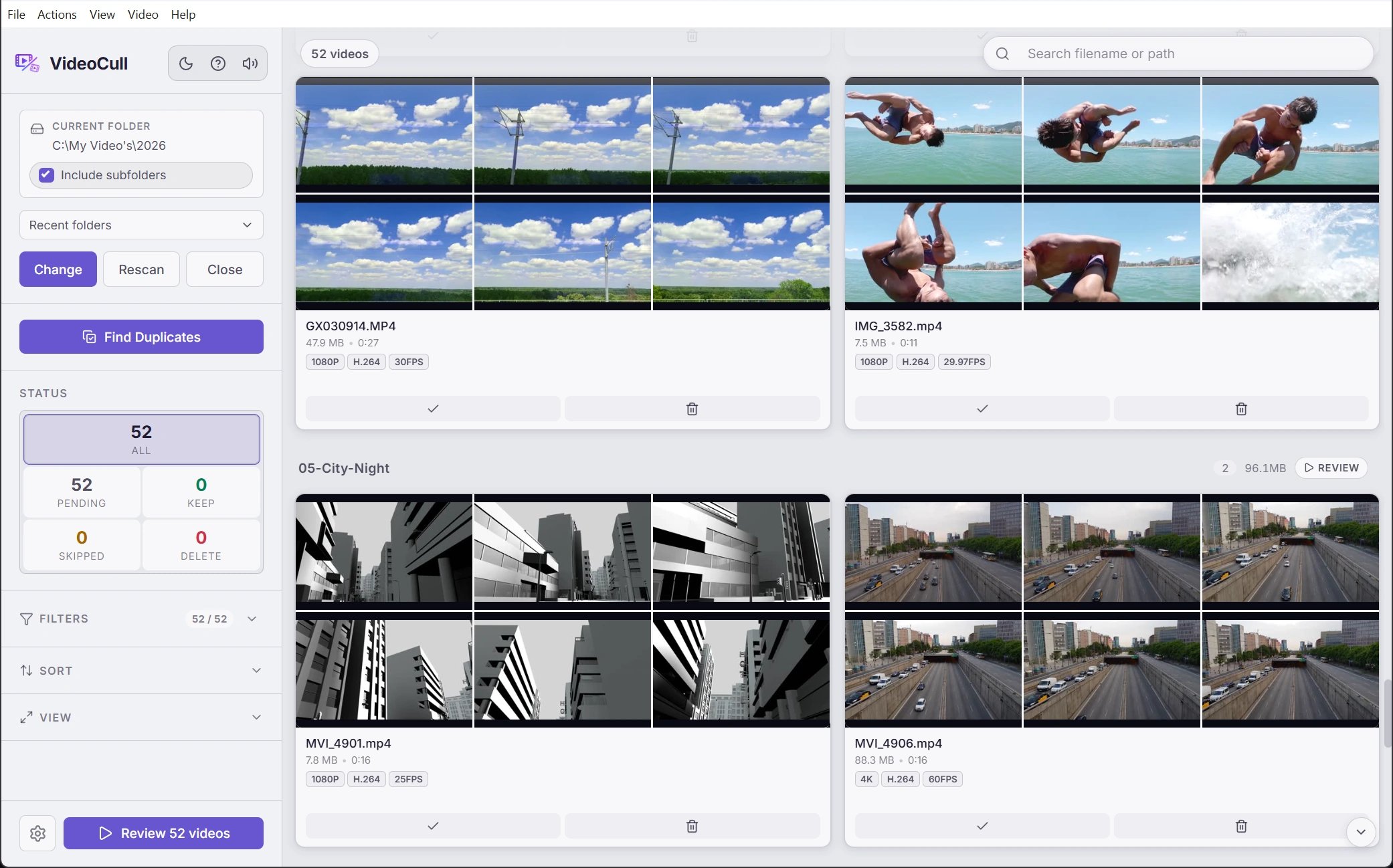
- Grid view for fast triage across large folders.
- Fullscreen review mode with playback, scrubbing, bookmarks, and undo.
- Duplicate review with suggested keepers and manual overrides.
- Cache that survives rescans and can live centrally, per drive, or next to your files.
Explore the app
Sessions and folders
Combine related folders, control recursive scans, reopen recent locations, and export a session report.
Grid view
Browse large folders at a glance with filters, sorting, badges, and batch actions.
Review mode
Step through videos one at a time with playback, bookmarks, and keyboard decisions.
Duplicate review
Find likely duplicates across all loaded videos or the current filtered view.
Settings and shortcuts
Tune thumbnails, cache behavior, duplicate detection, and keyboard bindings.