
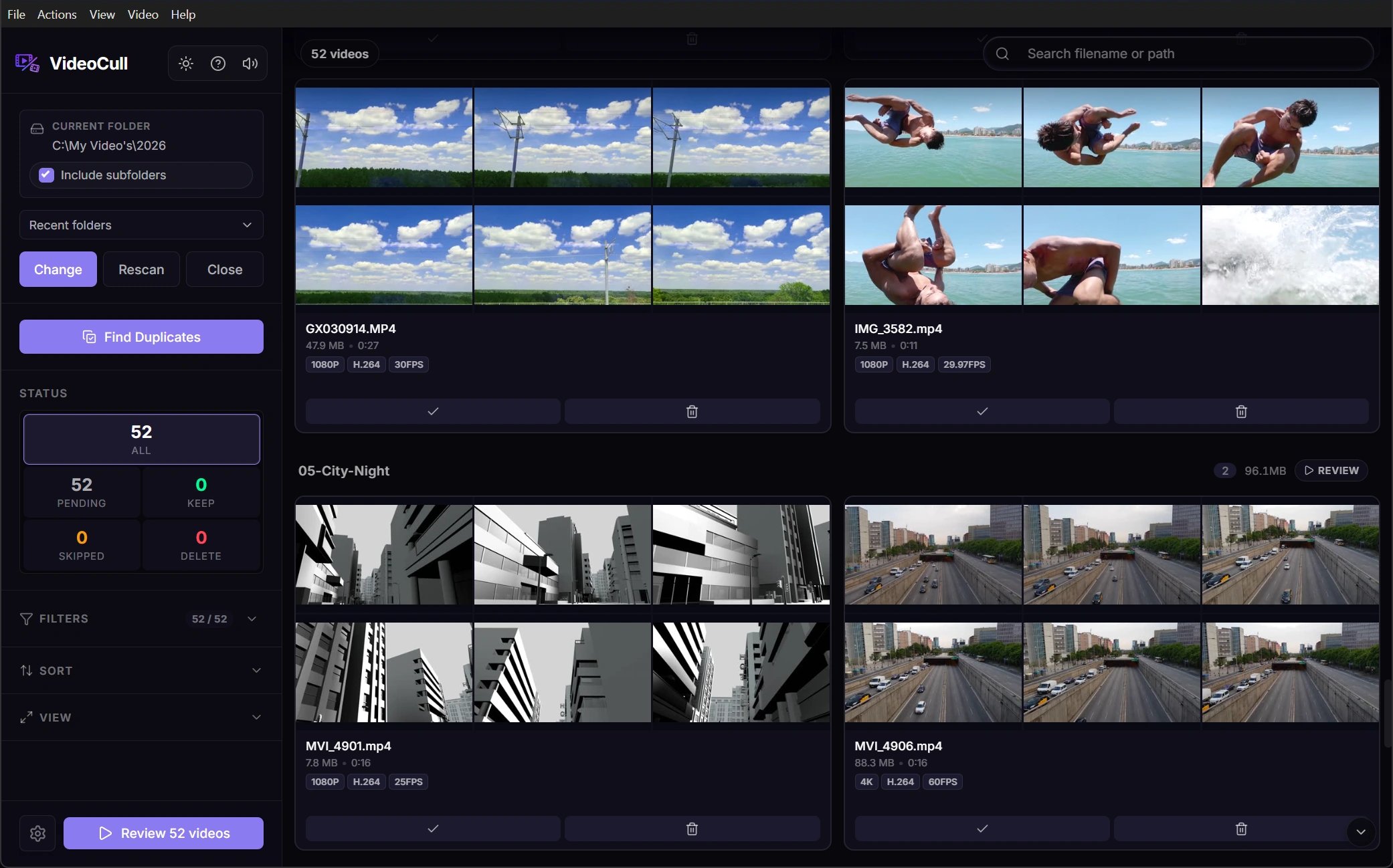
Search and filter
Search matches both the filename and full path. PressCtrl+F to focus the search field, then press Esc to clear the query and return focus to the grid.
All active filters combine. For example, Pending, Favorites, 2+ stars, and a duration range shows only videos satisfying every condition. The counter at the top of Filters shows the visible count against the full loaded count. Use Clear all to remove every grid filter at once. The sidebar remembers which sections you collapsed, shows how much of the library is reviewed above the status tiles, and keeps Delete and Review pinned to the bottom with a summary of the marked videos.
Filtering changes the current grid, Review button scope, filtered report scope, and filtered duplicate-detection scope. It never changes statuses by itself.
Sort and group
Sort videos by name, size, duration, date, rating, resolution, or FPS, in either direction. Name sorting is numeric-aware, so names such asclip2 and clip10 stay in a natural order.
With Group by folder enabled, folders are ordered separately by folder name or total folder size. The selected video sort still controls the order inside each folder. Folder headers show total and currently visible counts and sizes, which makes an active filter visible at folder level.
Use the floating down-arrow when several folder groups are visible to jump to the next folder. Turn grouping off when you need one global sorted queue across every loaded root.
Read and open cards
Cards show the filename, file size, duration, thumbnail strip, and Keep/Delete controls. Depending on enabled features and available metadata, they also show rating, favorite, resolution, codec, FPS, duplicate, status, and compatibility information.- Click Keep or Delete again to toggle that status back to Pending.
- Click the card body to open that exact video in Review without autoplay. The current filtered list becomes the navigation scope, and Review starts at the card you clicked.
- Click the play overlay to open that exact video in Review and start playback.
- Hold
Ctrlwhile clicking play to use the external player. Files marked incompatible use the external player automatically.
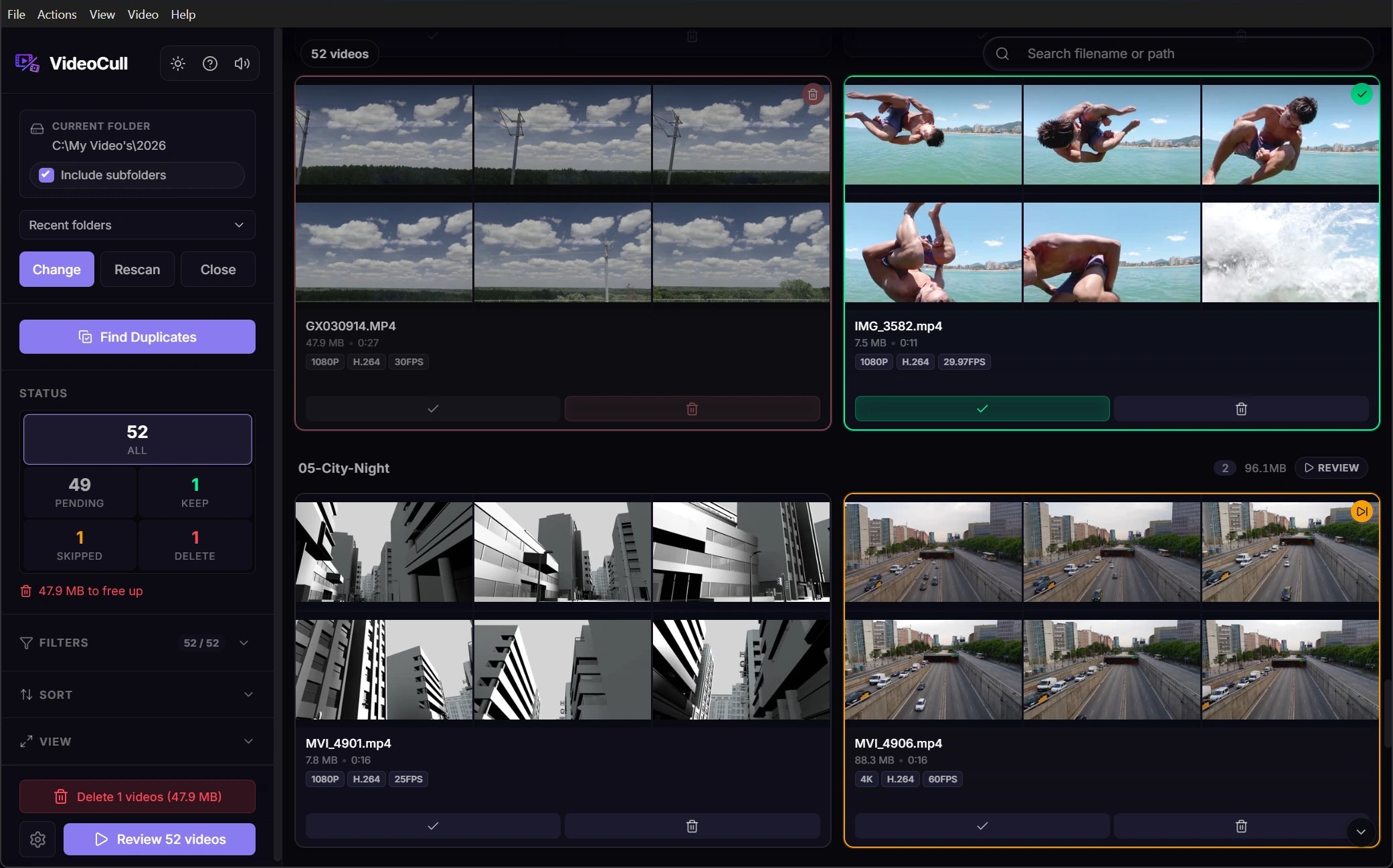
Select a batch
Batch selection is useful when a filter, folder, or visible range already identifies videos that should receive the same action.1
Start selection mode
Hold
Shift and click a card. The card becomes selected, selection controls appear on the visible cards, and the batch bar opens at the bottom.2
Add individual videos
While selection mode is active, click cards or their selection boxes to toggle them. A normal card click selects instead of opening Review until the selection is cleared.
3
Select a range
Hold
Shift and click another card to add the full visible range between the selection anchor and that card. The range follows the current filtered and sorted order, including across folder groups.4
Apply one action
Choose Keep, Delete, Skip, Reset, or Thumbs from the batch bar. Status and thumbnail actions clear the selection after they finish.
Esc or choose Clear to leave selection mode without changing any status.
Understand batch actions
Batch status changes are undoable as one operation. The final sidebar Delete action is different: it acts on every loaded video marked Delete, including videos hidden by current filters. See Delete and safety before committing a large batch.
Use context menus
Right-click a video for targeted playback, external opening, reveal-in-Explorer, status reset, thumbnail regeneration, or path copying. When folder grouping is enabled, right-click a folder header to:- Review only that folder.
- Filter the grid to that folder.
- Reveal or copy the folder path.
- Mark the folder’s videos Keep, Delete, or Pending.
- Regenerate thumbnails for the folder.