
Run detection
Duplicate detection needs at least two videos in its configured scope and waits for required metadata work to finish. Start it from the sidebar, or enable Run after each scan when duplicate review is the normal purpose of every session. Choose All loaded videos to compare across every session root. Choose Current filtered view to limit work to the active grid filters, such as one folder, date range, rating, or status. Exact-file checks are part of the run. The selected comparison method controls the sampled visual matching used for non-identical files:
The methods can find different results. Run them separately when coverage matters more than processing time: in duplicate groups, Run Again with Visual Similarity (or with pHash) in the sidebar, also in the Duplicates menu in the title bar, switches to the other method, saves it as your setting and runs detection again. Undo in the notice that follows switches back.
Tune matching
Similarity is the minimum score required to create a match. Raise it when unrelated videos appear together; lower it when known alternate encodes are missed. Visual results below roughly 95 percent deserve especially careful review. The score shown for a group is its weakest match, which is the same value the Similarity setting tests. A group shown at 91 percent therefore appears in any run at 91 percent or lower, and lowering the setting only adds matches that score below the previous value. Hover a group’s score to also see the average of its matches. Sample count controls how many points in each video contribute evidence. More samples take longer but reduce the chance that one common frame, intro, or title card creates a false match. Advanced controls handle harder libraries:- Sampling windows can avoid repeated intros and outros, including a custom percentage range.
- Duration tolerance limits how different runtimes may be before comparison.
- Requiring every sample scores each match by its weakest sample; turning it off scores and tests the average of all samples.
- Black- or white-pixel ignoring can reduce the effect of fades, letterboxing, and flashes.
- Flipped comparison checks horizontally mirrored copies.
- Maximum sampling duration limits work on long files;
0uses the full duration. - Checkpoint intervals save progress during long runs, and retry can revisit failed fingerprints.
Read and filter results
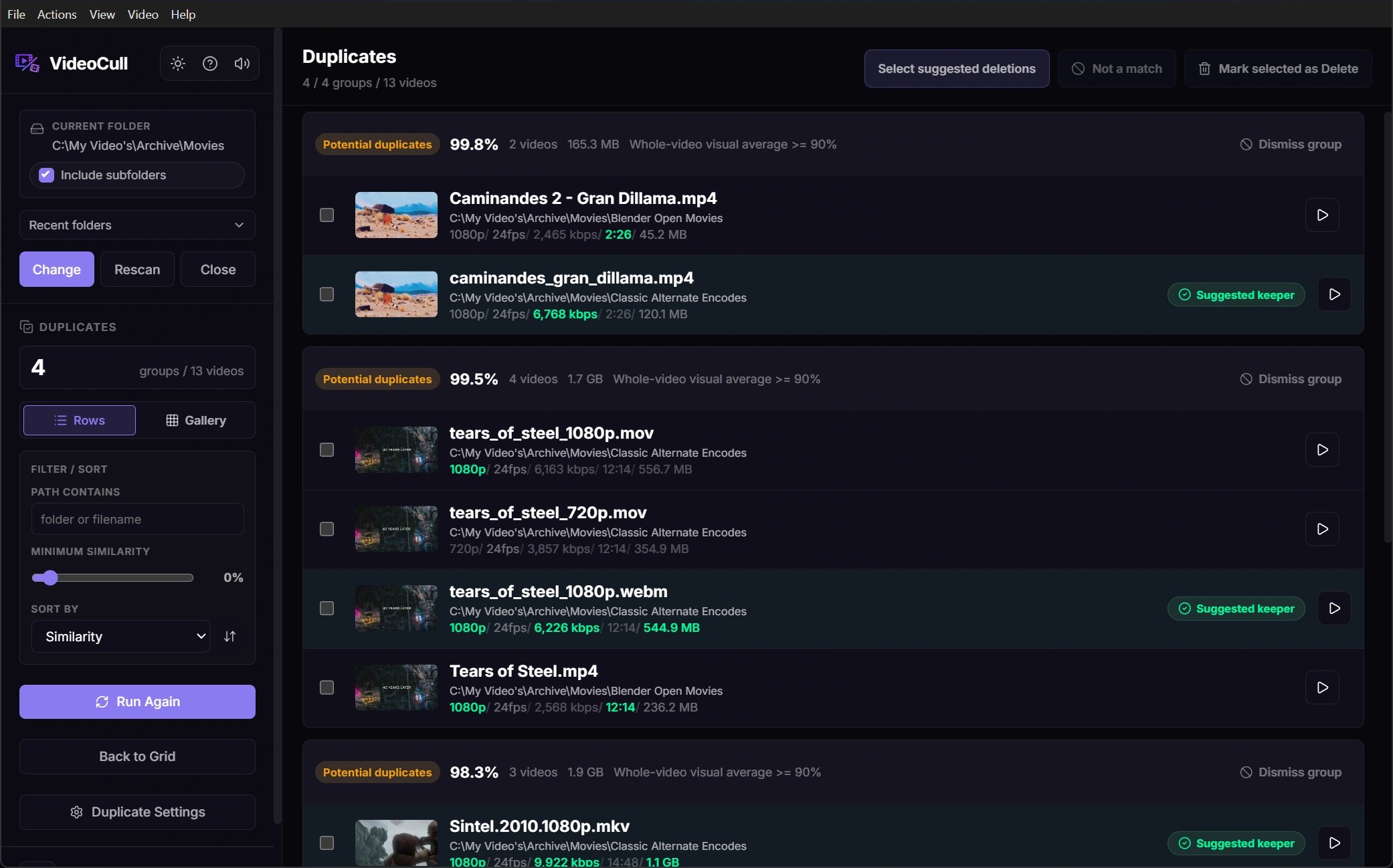
Switch between compact rows and thumbnail gallery cards from the duplicate sidebar. Both show group boundaries, exact or potential-match badges, similarity, status, selected keeper, and useful quality metadata. Duplicate-list filters are independent from the main grid filters. Search duplicate paths or filenames, set a minimum similarity to hide groups whose weakest match scores lower, and sort groups by similarity, group size, or total size. Reset duplicate filters returns to all groups sorted by highest similarity. Play any result to open Review at that video with only its duplicate group as the navigation scope. Returning restores the duplicate-list scroll position.Understand keeper suggestions
The selected keeper is a recommendation, not an approval. The automatic ranking compares the configured priority order: resolution, video bitrate, duration, FPS, and file size by default. The first unequal rule wins. Protect marked keep videos removes already-kept files from automatic delete suggestions. Protect skipped videos does the same for Skipped files when enabled. Protection affects selection suggestions; it does not make the underlying match more accurate. Right-click a video and choose Set as selected keeper when human context outweighs the automatic ranking. Clear the manual override from the group menu to use automatic ranking again.Select and mark copies
1
Inspect each group
Compare thumbnails, similarity, paths, duration, resolution, bitrate, FPS, and size. Play uncertain files before accepting a suggestion.
2
Select suggested deletions
Choose Select suggested deletions to select non-keeper videos from the currently visible groups. Review the selected count and individual checks before continuing.
3
Correct the selection
Toggle individual rows or cards, change the selected keeper, or clear the selection. Right-click a group to select suggestions for only that group.
4
Mark selected as Delete
This changes statuses to Delete and leaves files on disk. Return to the grid, filter by Delete, and run the normal confirmed delete action only after the batch is correct.
Ignore false matches
Use Not a match after selecting exactly two videos from the same group. The pair is saved in ignored-match settings and excluded from later duplicate runs. In a two-video group, the current group disappears immediately; in a larger group, rerun detection to rebuild the remaining relationships. Right-click actions provide broader corrections:- Exclude from group ignores one video against every other video in that group.
- Dismiss group ignores every pair in the group and hides it from future runs.
- The toast Undo action restores the ignored pairs and current group while the toast remains available.
- Clear ignored matches in Settings allows all saved pairs to be considered again on the next run.